Select Version of EA Desktop:
-
The inline/xline fields are now displaying to two decimal places of precision on the 'Calculate x/y or inline/xline' tool.
Create, edit and manage bin grids using the Bin Grid module.
The Bin Grid module is your interface for defining bin grids for acquisition or processing projects. The bin grids you create become available for linking to your seismic and associated SEG-Y files. You can also use the bin grid as a load sheet for loading data to a workstation.
To open items in the Bin Grid module:
-
Click search next to Bin Grid in the Navigation panel.
-
Select either Bin Grid Search or Basic Bin Grid Search from the menu.
-
Enter your filter values in the search window then click Search.
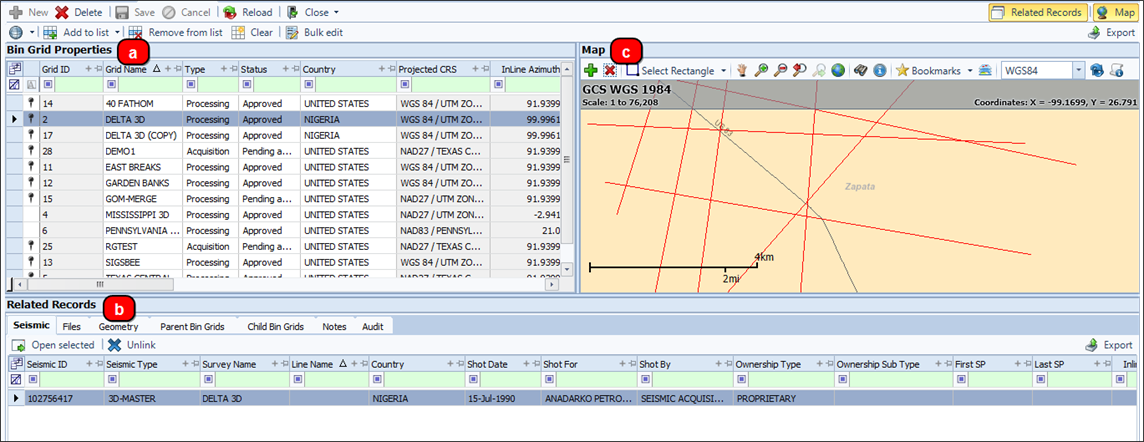
The results open in the Bin Grid module. The Work Area is divided into 3 Panels
-
Bin Grid Properties: displays details about the Bin Grid
-
Related Records: To view additional details for a Bin Grid, click on a row in the Bin Grid Properties and the associated details displaying the tabs.
-
Map: To display the geographical location of a bin grid, click the Pin Icon at the head of an item from the Bin Grid Properties grid.
The map will zoom to the bin grid location.
To display the properties of a bin grid that is on the map, use a selection tool and add the bin grid to the Bin Grid Properties grid.
Tip:When creating a new bin grid, the map is an effective tool for checking that positioning information is accurate and that the bin grid is located correctly.
Create, edit and manage bin grids using the Bin Grid module.
The Bin Grid module is your interface for defining bin grids for acquisition or processing projects. The bin grids you create become available for linking to your seismic and associated SEG-Y files. You can also use the bin grid as a load sheet for loading data to a workstation.
-
Added an Audit tab to the Bin Grid Related Records.
-
Added a new security tag for Bin Grid creation instead of having the Bin Grid edit security tag work for both create and edit.
To open items in the Bin Grid module:
-
Click search next to Bin Grid in the Navigation panel.
-
Select either Bin Grid Search or Basic Bin Grid Search from the menu.
-
Enter your filter values in the search window then click Search.
The results open in the Bin Grid module. The Work Area is divided into 3 Panels
-
Bin Grid Properties: displays details about the Bin Grid
-
Related Records: To view additional details for a Bin Grid, click on a row in the Bin Grid Properties and the associated details displaying the tabs.
-
Map: To display the geographical location of a bin grid, click the Pin Icon at the head of an item from the Bin Grid Properties grid.
The map will zoom to the bin grid location.
To display the properties of a bin grid that is on the map, use a selection tool and add the bin grid to the Bin Grid Properties grid.
Tip:When creating a new bin grid, the map is an effective tool for checking that positioning information is accurate and that the bin grid is located correctly.
Create, edit and manage bin grids using the Bin Grid module.
The Bin Grid module is your interface for defining bin grids for acquisition or processing projects. The bin grids you create become available for linking to your seismic and associated SEG-Y files. You can also use the bin grid as a load sheet for loading data to a workstation.
To open items in the Bin Grid module:
-
Click search next to Bin Grid in the Navigation panel.
-
Select either Bin Grid Search or Basic Bin Grid Search from the menu.
-
Enter your filter values in the search window then click Search.
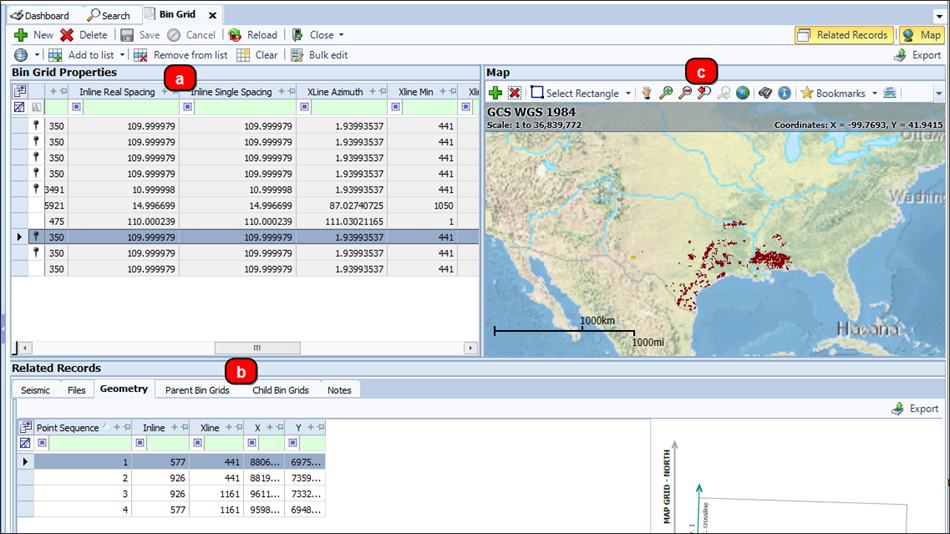
The results open in the Bin Grid module. The Work Area is divided into 3 Panels
-
Bin Grid Properties: displays details about the Bin Grid
-
Related Records: To view additional details for a Bin Grid, click on a row in the Bin Grid Properties and the associated details displaying the tabs.
-
Map: To display the geographical location of a bin grid, click the Pin Icon at the head of an item from the Bin Grid Properties grid.
The map will zoom to the bin grid location.
To display the properties of a bin grid that is on the map, use a selection tool and add the bin grid to the Bin Grid Properties grid.
Tip:When creating a new bin grid, the map is an effective tool for checking that positioning information is accurate and that the bin grid is located correctly.